
Warehouse Dashboard
What is the Warehouse Dashboard?
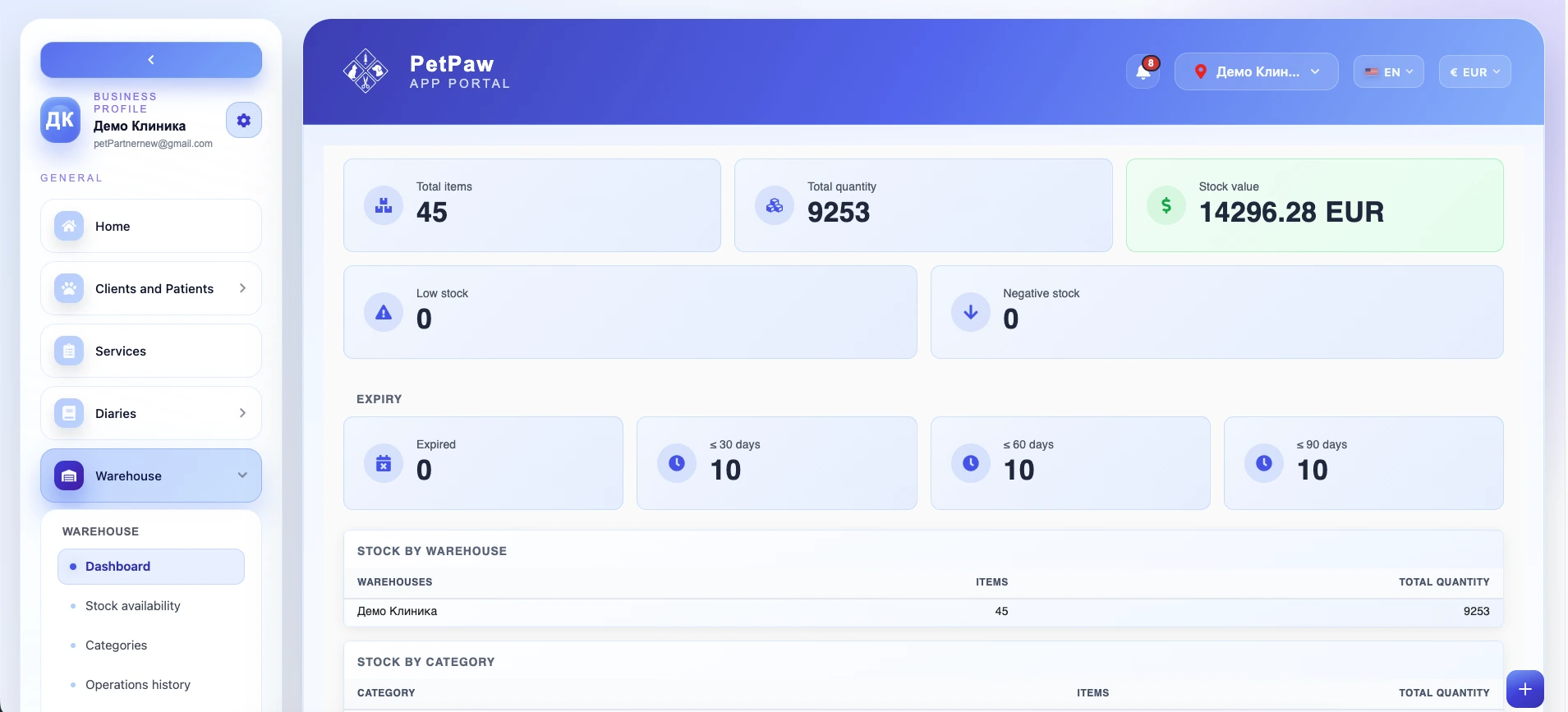
The Warehouse Dashboard is the main overview screen for your clinic's inventory. It brings together the most important warehouse information into a single view, so you can quickly understand current stock levels, product value, expiry risks, and inventory movements without opening multiple sections.
This page is designed to help clinic teams stay on top of stock availability, identify potential shortages early, and monitor warehouse performance more efficiently.
How to open the Warehouse Dashboard
- Log in to the app portal.
- From the left navigation menu, open Warehouse.
- Select Dashboard.
Once opened, you will see a summary of your warehouse data in several cards and tables.
What information is shown
Overview cards
At the top of the page, the dashboard shows key warehouse indicators:
Total Items
Shows the total number of unique products/items currently registered in the selected warehouse scope.
Total Quantity
Shows the total quantity of all units currently in stock.
Stock Value
Shows the total monetary value of all current stock based on the stored inventory data.
Low Stock
Shows how many items have reached or dropped below their configured low-stock threshold. This helps you identify products that may need restocking soon.
Negative Stock
Shows items with stock levels below zero. This usually indicates that more stock has been used, sold, or removed than currently recorded in the system and should be reviewed.
Expiry overview
The dashboard groups stock by expiry status, helping you quickly identify products that need attention:
- Expired — items whose expiry date has already passed
- ≤ 30 days — items expiring within the next 30 days
- ≤ 60 days — items expiring within the next 60 days
- ≤ 90 days — items expiring within the next 90 days
This section is especially useful for clinics that manage medications, consumables, and other time-sensitive products.
Stock by warehouse
This table shows how inventory is distributed across your warehouses. For each warehouse, you can see:
- warehouse name
- number of items
- total quantity in stock
This is useful if your organization works with multiple storage locations and you need a quick warehouse-level overview.
Stock by category
This section groups inventory by category, such as medical consumables, cleaning products, surgical equipment, diagnostic equipment, and more.
For each category, the dashboard shows:
- category name
- number of items
- total quantity
This helps you understand which types of products make up most of your inventory and where stock is concentrated.
Inventory movements by type
The dashboard displays stock movement statistics grouped by movement type. Depending on your setup, this may include:
- stock in
- stock out
- transfers
- adjustments
- usage or consumption
This gives you a clearer picture of how inventory is moving through the clinic and can help identify unusual activity or frequent adjustments.
Why the Warehouse Dashboard is useful
The Warehouse Dashboard helps your team:
- monitor stock health from one place
- spot low-stock and negative-stock issues early
- keep an eye on products nearing expiry
- understand stock distribution across warehouses and categories
- review inventory activity without opening multiple reports
- make faster restocking and stock-control decisions
For busy clinics, this overview can reduce the risk of missing important stock issues that may affect day-to-day work.
Best practices
To get the most value from the Warehouse Dashboard:
- Review the dashboard regularly — especially at the start of the day or week
- Check low-stock and negative-stock values often to avoid shortages or data inconsistencies
- Monitor expiry groups to reduce waste and ensure products are used in time
- Keep stock movements up to date so dashboard data remains accurate
- Use categories and warehouses consistently to make reports easier to interpret
Important notes
The information shown on the dashboard depends on the inventory records currently stored in the system. If stock movements, quantities, or expiry dates are not entered correctly, the dashboard may not reflect the real warehouse situation.
The exact categories, warehouses, and movement types visible may vary depending on your clinic's setup.