
Stock Counts
What are Stock Counts?
The Stock Counts page is used to perform physical inventory checks in your clinic's warehouse. It helps you compare the quantity that is physically counted in the warehouse with the quantity currently recorded in the system.
Stock counts are useful when you need to verify that warehouse records match the real stock on hand. If differences are found, the approved stock count updates the system by posting the required stock corrections, while also keeping a record of the count and its effect on inventory history.
This page is especially helpful during routine inventory checks, monthly or periodic stock reviews, discrepancy investigations, and full warehouse recounts.
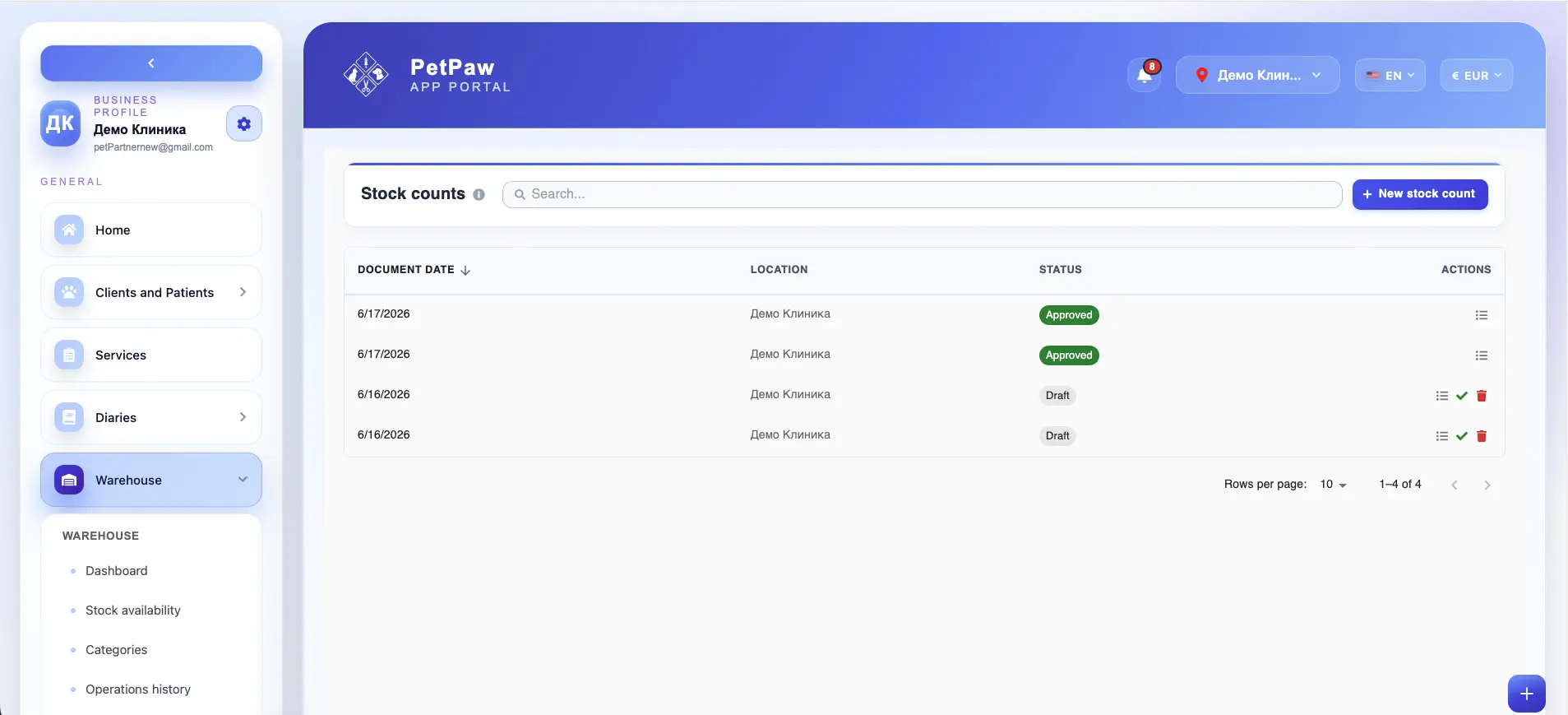
How to open Stock Counts
- Log in to the app portal.
- From the left navigation menu, open Warehouse.
- Select Stock Counts.
The page opens as a list of stock count documents, where you can create new counts, review existing ones, and track their status.
What Stock Counts are used for
Stock Counts help your clinic verify the accuracy of warehouse stock and correct differences between recorded and actual quantities.
They can be used for:
- periodic warehouse inventory checks
- full stock recounts
- spot checks for selected items
- investigating stock discrepancies
- correcting stock after operational mistakes
- aligning warehouse data with the physical inventory
Instead of editing quantities directly without documentation, stock counts provide a structured way to verify and correct stock while keeping a clear record of what was counted and why.
Stock count statuses
Stock count documents can usually move through different statuses during the process.
Depending on your workflow, you may see statuses such as:
Draft
The stock count has been created but is not yet finalized. In draft status, users can continue adding counted items, editing quantities, and entering notes or reasons.
Approved
The stock count has been finalized and approved. Once approved, the system applies the necessary stock corrections and stores the result in stock history.
The exact status names may vary depending on your setup, but the core idea is that a stock count is prepared first and only affects stock after approval.
Create a new stock count
To start a new physical inventory check:
- Open the Stock Counts page.
- Click New Stock Count.
- Create the stock count document.
- Add the items that were physically counted.
- Enter the counted quantity for each item.
- Add a reason or note if required.
- Save the stock count as a draft if you want to continue later, or approve it once the review is complete.
This lets your team prepare the count carefully before any stock corrections are posted.
What information can be included in a stock count
Depending on your setup, a stock count may include the following information:
Document date
The date of the stock count document.
Warehouse or location
The warehouse, storage room, or location where the physical stock count was performed.
Counted items
The products that were physically checked during the count.
Expected quantity
The quantity currently recorded in the system before the stock count is approved.
Counted quantity
The quantity physically counted by the user or staff during the stock check.
Difference
The difference between the expected quantity and the counted quantity.
Examples:
- expected 150, counted 145 → difference -5
- expected 80, counted 100 → difference +20
Reason
A reason explaining why the count was performed or why a correction is needed.
Examples:
- full stock recount
- discrepancy found during review
- damaged or missing stock discovered
- warehouse correction after manual verification
- periodic monthly count
Notes
Additional internal comments about the stock count, the counting process, or specific findings.
How stock counts work
The main purpose of a stock count is to compare expected quantities with physically counted quantities.
Expected quantity
This is the quantity currently stored in the system before the stock count is approved.
Counted quantity
This is the quantity physically found in the warehouse during the count.
If the counted quantity matches the expected quantity, no correction is needed.
If the counted quantity is different, the system prepares a stock correction that will be posted when the stock count is approved.
This makes stock counts a controlled way to correct inventory instead of manually changing quantities without documentation.
Approve a stock count
Once the stock count has been reviewed and is ready:
- Open the draft stock count.
- Confirm the counted quantities and differences.
- Review the reason and any notes.
- Approve the stock count.
After approval, the system posts the required stock corrections for all differences included in the count.
For example:
- if the system shows 100 and the counted quantity is 90, the stock may be corrected by -10
- if the system shows 50 and the counted quantity is 60, the stock may be corrected by +10
Approved stock counts help align the warehouse system with the real physical stock.
How approved stock counts affect inventory
Once a stock count is approved:
- the system compares the expected and counted quantities
- stock corrections are posted for the differences
- warehouse availability is updated
- the correction becomes part of stock movement history
- the count result remains stored as a warehouse document for later review
This ensures that stock corrections made during a physical inventory check remain traceable.
Stock counts in operations history
Approved stock counts do not just update quantities — they also create traceable inventory history.
After approval, the result may appear in Operations History as stock corrections or related movement entries, depending on your warehouse configuration.
This helps your clinic later review:
- which items were corrected through a stock count
- what the original and counted quantities were
- when the correction was posted
- who performed or approved it
- what reason was recorded for the count
Why Stock Counts are important
The Stock Counts page helps your clinic:
- verify whether system stock matches the real warehouse stock
- identify missing, extra, or incorrectly recorded quantities
- correct inventory discrepancies in a controlled way
- keep a clear history of physical inventory checks
- reduce stock errors over time
- improve trust in warehouse data and reporting
It is one of the most important tools for maintaining accurate warehouse records.
Best practices
To use Stock Counts more effectively:
- Perform stock counts regularly, especially for important or fast-moving items
- Use draft counts when the review will take time or involve multiple staff members
- Always enter a clear reason for the count or correction when possible
- Double-check counted quantities before approval
- Approve stock counts only after the physical check is complete
- Review stock corrections in Operations History after approval, especially when large differences are found
Important notes
If counted quantities are entered incorrectly, the approval may post incorrect stock corrections. Stock counts should be used as a controlled correction process rather than an informal way to change quantities.
- A stock count usually affects inventory only after it is approved.
- The exact fields, statuses, and approval flow may vary depending on your warehouse setup.