
Sales
What are Sales?
The Sales page is used to register products that leave the warehouse as part of a sale. It helps your clinic keep a structured record of what was sold, to whom it was sold, who processed the sale, and which items were deducted from stock.
Each sale acts as a warehouse document for outgoing stock. Once recorded and approved, it reduces stock availability and creates a corresponding stock movement history entry. This makes it easier to trace which products have been sold and to maintain accurate inventory records.
The page can be used for medications, consumables, retail products, pet-related items, and any other stock sold to clients or linked counterparties.
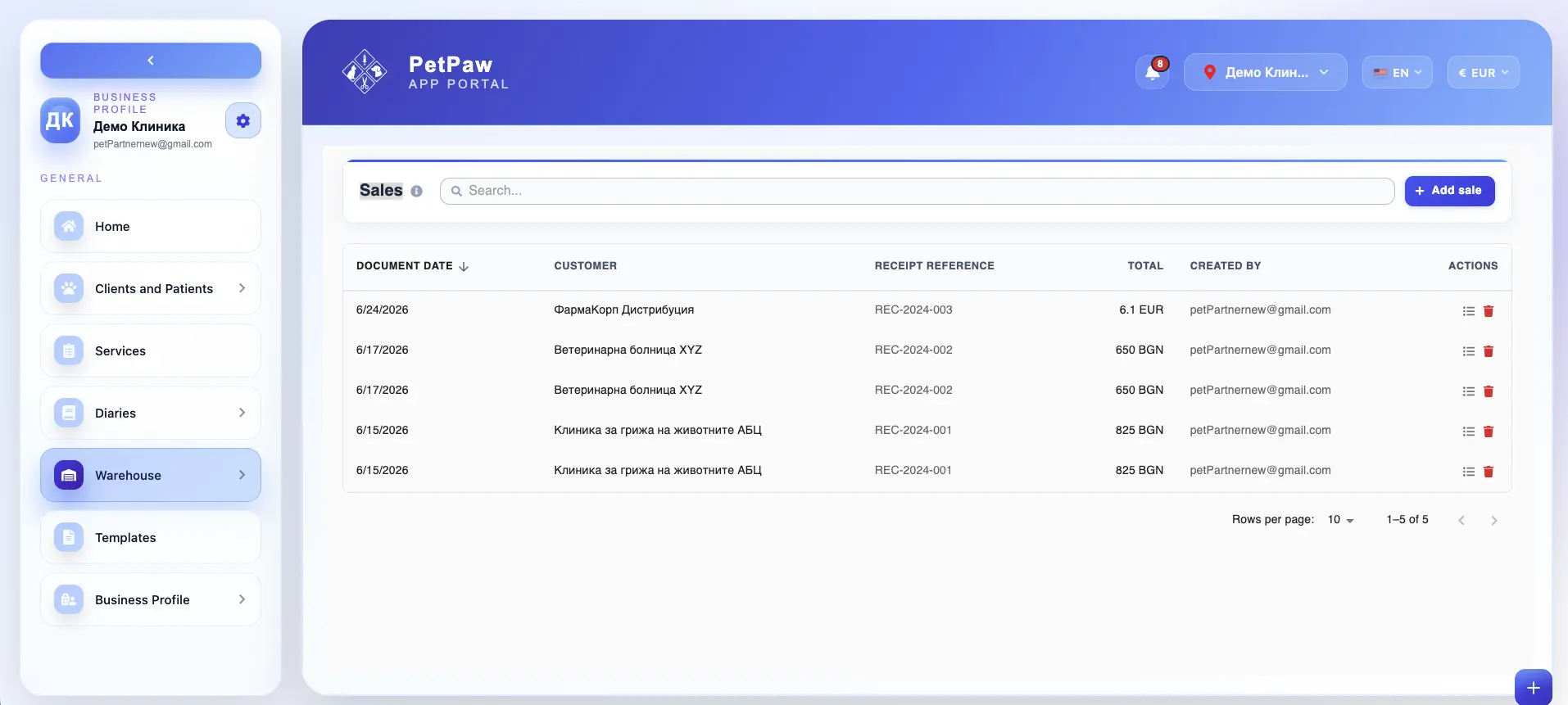
How to open Sales
- Log in to the app portal.
- From the left navigation menu, open Warehouse.
- Select Sales.
The page opens as a list of previously created sales documents, where you can review, create, and manage outgoing stock records.
What information can be recorded in a sale
Each sale can include document-level information and one or more sold line items. Depending on your setup, a sale record may include the following fields:
Document date
The date on which the sale was created or recorded.
Customer
The customer linked to the sale. Depending on the workflow, this can be selected from:
- counterparties
- pet owners
- other customer records available in the system
This helps connect the sale to the correct client or business contact.
Salesperson
The employee or user who created, handled, or completed the sale.
Receipt reference
A receipt number, sales receipt identifier, or other reference connected to the sale transaction.
Currency
The currency used for the sale and pricing values.
Notes
Additional internal notes related to the sale, such as special sale conditions, payment comments, or internal remarks.
Sold line items
Each sale can contain one or more line items representing the products sold. For each sold item, you can typically record:
Item — the warehouse product that was sold.
Quantity — the quantity sold from stock.
Sale price — the unit sale price used for that item in the sale.
VAT — the VAT rate applied to the sold item, if relevant for pricing, invoicing, or accounting workflows.
Expiry date — the expiry date of the sold stock batch, if expiry tracking is enabled and relevant for the selected item.
Depending on the warehouse configuration, line items may also be linked to additional product details such as batch data, warehouse source, or item identifiers.
Create a new sale
To register stock leaving the warehouse through a sale:
- Open the Sales page.
- Click Add Sale.
- Fill in the document details:
- document date
- customer
- salesperson
- receipt reference
- currency
- notes
- Add the sold products as line items.
- For each line item, enter the required details:
- item
- quantity
- sale price
- VAT
- expiry date, if applicable
- Save the sale record.
- Approve the sale if your workflow requires approval before stock is deducted.
Once approved, the sold quantities are removed from stock.
How sales affect stock
Sales are directly connected to warehouse stock levels. When a sale is approved:
- the sold quantities are deducted from stock
- warehouse availability is updated
- stock movement history is created
- the sold items are reflected in inventory records and warehouse reporting
- stock levels remain aligned with actual outgoing products
This means the Sales page is one of the main ways stock leaves the warehouse in the system.
Traceability and stock history
One of the main benefits of sales records is traceability. Because each sale creates a stock movement history entry, your clinic can later review:
- when a product was sold
- which customer it was sold to
- which employee handled the sale
- what quantity left the warehouse
- which price and VAT were applied
- whether the sold stock was linked to a tracked expiry date
This helps keep outgoing stock transparent and easier to audit internally.
Reviewing and managing sales records
The Sales page can also be used to review previously recorded sales. Depending on your permissions and workflow, you may be able to:
- open an existing sale
- review customer and receipt details
- check the sold items and quantities
- confirm pricing and VAT values
- delete a draft or incorrect sale record
- manage the sale before final approval
If a sale has already reduced stock, editing or deleting it may be restricted or may require additional internal review.
Why the Sales page is important
The Sales page helps your clinic:
- keep a structured record of outgoing stock
- connect sold products to customers and sales documents
- reduce stock automatically when products are sold
- maintain a clear history of sold warehouse items
- support accurate stock reporting and inventory control
- improve traceability for stock that leaves the warehouse
It is one of the core pages for managing warehouse stock that is sold to clients or counterparties.
Best practices
To use Sales more effectively:
- Record sales as soon as stock is sold
- Double-check customer, quantity, and pricing information before approval
- Use receipt references consistently for easier review and reconciliation
- Review sold items carefully before approving the sale
- Make sure the correct stock items are selected, especially when products have similar names
- Limit editing or deletion of approved sales according to your clinic's internal controls
Important notes
Stock is typically reduced only after a sale is approved, depending on your workflow configuration. Incorrect quantities, sale prices, or VAT values may affect stock accuracy, warehouse reporting, and internal sales records.
- The available fields for a sale may vary depending on your warehouse setup and enabled features.
- Some actions, such as editing, approving, or deleting sales, may depend on user permissions.