
Operations History
What is Operations History?
The Operations History page is the central log of warehouse stock activity. It records every stock movement that affects inventory, helping your clinic understand what changed, when it changed, who performed the action, and why it happened.
Unlike summary pages such as the Warehouse Dashboard or Stock Availability, Operations History focuses on the movement trail behind stock changes. It gives you a chronological record of warehouse activity and helps maintain transparency, traceability, and control over inventory operations.
This page is especially useful when reviewing stock discrepancies, investigating quantity changes, checking who performed an action, or understanding how current stock levels were reached.
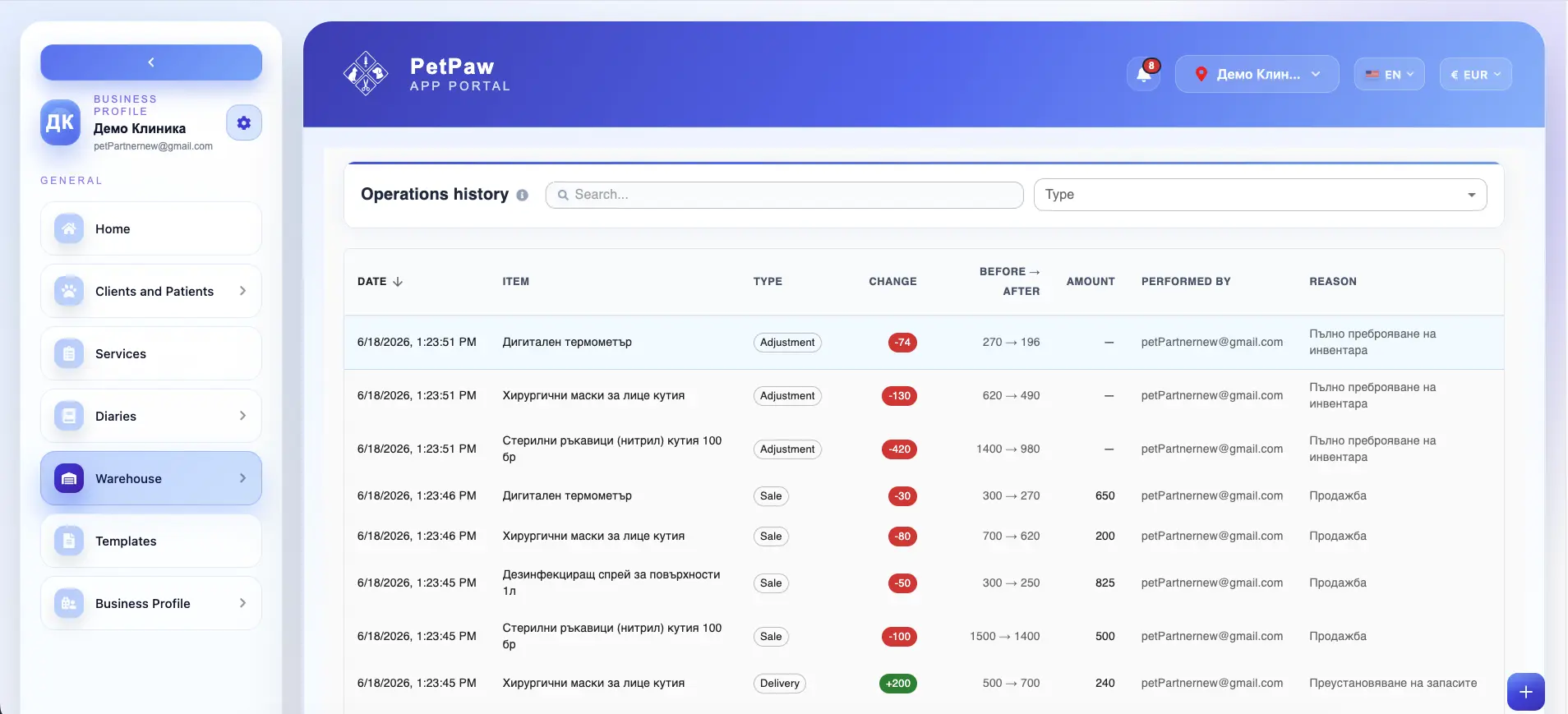
How to open Operations History
- Log in to the app portal.
- From the left navigation menu, open Warehouse.
- Select Operations History.
The page opens as a chronological list of stock movements, where each row represents a warehouse operation affecting a specific item.
What is recorded in Operations History
The Operations History page records all major stock movements that affect warehouse quantities.
Depending on your warehouse setup, this may include:
Initial stock
The first quantity entered when an item is initially added or stocked in the system.
Deliveries
Incoming stock received from suppliers and added to the warehouse.
Sales
Outgoing stock sold to customers and deducted from availability.
Returns
Reversals of deliveries or sales that adjust stock while keeping the original document history intact.
Adjustments
Manual quantity corrections made to align the system with the actual stock situation.
Damaged stock
Items removed or adjusted because they were damaged, unusable, or no longer fit for use.
Transfers
Stock moved between warehouses, rooms, or storage locations, if transfer functionality is enabled.
This gives your clinic a full movement trail for warehouse activity.
What information is shown for each operation
Each row in Operations History represents a specific stock movement and may include the following details:
Date and time
Shows when the stock movement was recorded.
Item
The product or warehouse item affected by the operation.
Movement type
The type of operation that caused the stock change, such as delivery, sale, adjustment, return, damaged stock, transfer, or initial stock.
Quantity change
Shows the exact stock increase or decrease caused by the operation.
Examples:
- +200 for added stock
- -30 for removed stock
This makes it easy to see whether the operation increased or decreased availability.
Before-and-after quantity
Shows the stock quantity before the operation and the quantity after it was applied.
For example:
- 500 → 700
- 300 → 270
This helps users understand the direct effect of the operation on available stock.
Amount
Shows the monetary amount linked to the movement, when applicable.
Depending on the operation type, this may reflect:
- purchase value
- sale value
- adjustment value
- document total or item-related amount
Performed by
Shows the user or employee who created, approved, or performed the operation.
Reason
Shows the reason linked to the movement, when one has been provided.
Examples may include:
- stock correction
- full inventory recount
- sale
- supplier return
- client return
- damaged goods
- internal warehouse correction
Notes
Additional notes or internal comments may also be stored for the operation, depending on the workflow.
Document reference
If the movement is linked to a warehouse document, the history may also show or connect to the related document reference, such as a delivery or sale number.
Why Operations History is useful
The Operations History page helps your clinic answer questions such as:
- Why did the quantity of an item change?
- Was the stock reduced because of a sale, adjustment, or damaged item?
- Who made the change?
- When was the change recorded?
- What was the quantity before and after the operation?
- Was the movement connected to a delivery, sale, or return document?
This makes the page one of the most important tools for stock traceability and internal warehouse review.
Using Operations History for stock investigations
Operations History is especially helpful when you need to investigate stock issues.
For example, you can use it to:
- review why an item suddenly dropped in quantity
- identify when negative or unexpected stock changes happened
- confirm whether an item was delivered, sold, returned, or adjusted
- check who performed a stock correction
- compare physical stock counts against recorded warehouse activity
- understand the sequence of operations for a specific item
Because the page provides a movement-by-movement record, it is often the best place to start when warehouse quantities do not match expectations.
Filtering and reviewing operations
Depending on your setup, the page may allow you to search or filter the history by criteria such as:
- item name
- movement type
- date range
- user
- document reference
- reason or note content
This helps narrow the history down to the operations you need to review.
For example, you might filter only:
- Sales
- Deliveries
- Adjustments
- Returns
- operations for a single product
How Operations History supports warehouse control
Operations History supports warehouse control by giving your clinic a reliable audit trail of inventory activity.
It helps you:
- verify how stock levels changed over time
- detect incorrect or unusual stock movements
- confirm whether changes were intentional and documented
- review the actions of users involved in warehouse work
- connect warehouse quantities to deliveries, sales, and corrections
- improve internal accountability and reporting
This makes it an essential page for clinics that want tighter stock control and clearer inventory oversight.
Best practices
To use Operations History more effectively:
- Review the history when stock quantities look incorrect
- Use movement types to understand the source of each stock change
- Always enter clear reasons for manual adjustments or returns
- Check before-and-after quantities when investigating discrepancies
- Use document references to trace movements back to deliveries or sales
- Limit manual corrections to authorized staff whenever possible
Important notes
Operations History reflects recorded system activity, so incorrect deliveries, sales, or adjustments will also appear as part of the warehouse trail unless corrected through proper follow-up actions.
- The operations shown depend on the warehouse actions recorded in the system.
- Some movement types or columns may vary depending on enabled warehouse features.
- If users do not enter clear reasons or notes for manual actions, the movement history may be harder to interpret later.