
Inventory Items
What are Inventory Items?
The Inventory Items page is where you create, view, and manage the individual products stored in your clinic's warehouse. Each inventory item contains the core information needed for stock control, traceability, pricing, and reporting.
This page is used to maintain the item catalog behind your stock availability records. It allows your team to define how a product is stored, identified, priced, and tracked in the system.
Inventory items can include medical consumables, medications, disinfectants, equipment, surgical materials, and any other products your clinic keeps in stock.
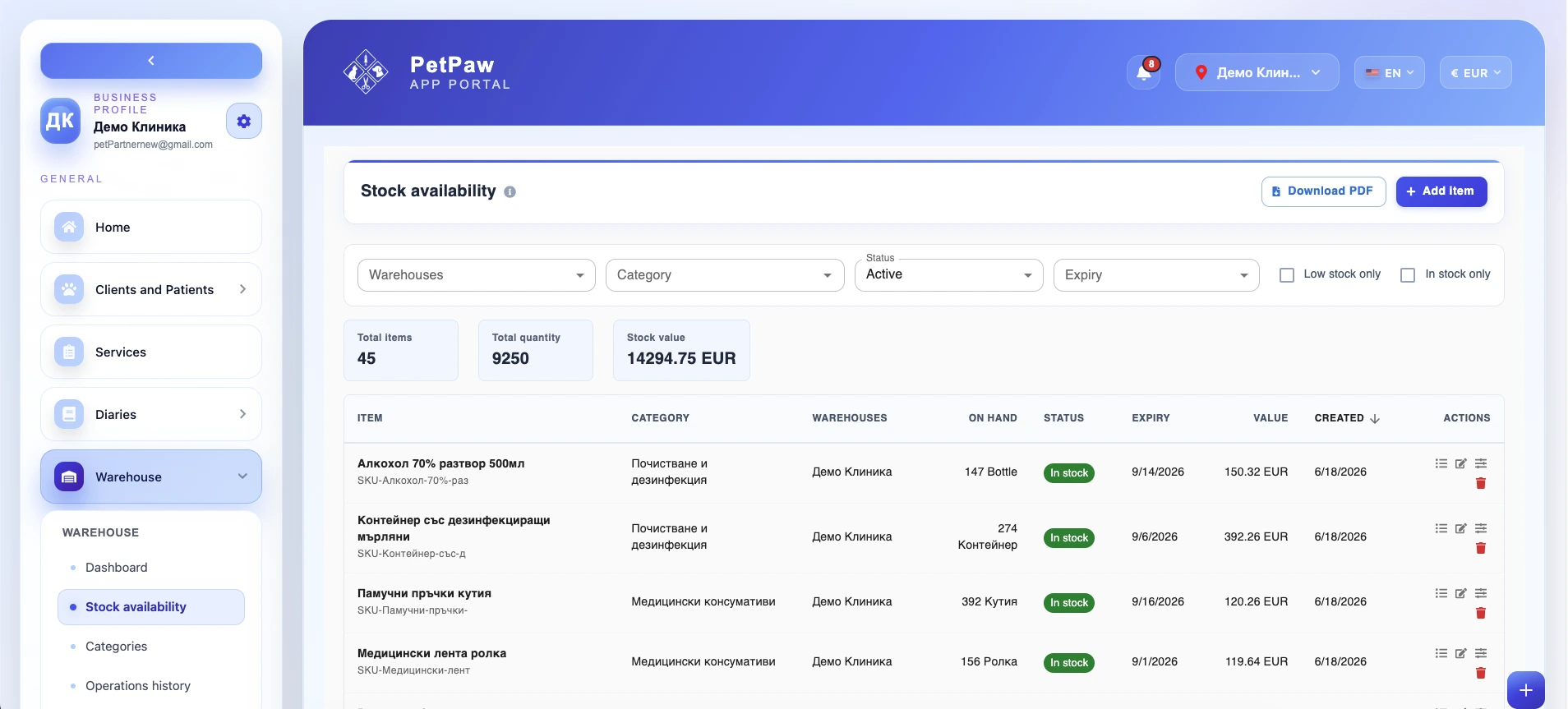
How to open Inventory Items
- Log in to the app portal.
- From the left navigation menu, open Warehouse.
- Select Stock Availability or the relevant warehouse item list page, depending on your setup.
- Use Add Item to create a new inventory item or open an existing record to review and manage it.
The page opens as a list of warehouse items, with filters, stock summary cards, and actions for managing each record.
What information can be stored for an inventory item
Each inventory item can contain a range of details that help your clinic manage stock accurately and consistently. Depending on your setup, an item record may include the following fields:
Item name
The product name used to identify the item in the warehouse.
Quantity
The currently available quantity of the item or the quantity entered when creating or adjusting stock.
Unit
The unit of measurement used for the item, such as pieces, boxes, bottles, packs, rolls, or other custom units.
Category
The category assigned to the item, such as medical consumables, cleaning and disinfection, surgical equipment, diagnostic equipment, and more.
Batch number
The lot or batch number associated with the item. This is important for traceability, especially for medications, sterile products, or regulated supplies.
Expiration date
The date after which the item should no longer be used. This is especially important for medications, consumables, and other time-sensitive stock.
Supplier
The vendor or supplier associated with the item, if this information is tracked in your warehouse setup.
Purchase price
The price paid by the clinic when purchasing the item.
Sale price
The price used if the item is resold, charged to clients, or used in billable services.
VAT
The VAT rate applied to the item, if relevant for pricing, sales, or accounting workflows.
Warehouse location
The warehouse, storage room, or location where the item is stored.
Barcode
The barcode assigned to the item for faster identification, scanning, or stock control.
SKU
The internal stock keeping unit used to identify the item in the system.
Notes
Additional internal information about the item, such as storage instructions, packaging details, supplier comments, or handling notes.
Managing item pricing and currency
Inventory item prices can be managed with currency in mind, depending on how your clinic uses warehouse pricing. This can help you:
- maintain purchase and sale values in the correct currency
- keep stock valuation consistent
- support internal reporting and financial review
- manage products supplied or priced in different currencies when applicable
The exact pricing fields and currency behavior may depend on your system configuration.
Create a new inventory item
To add a new warehouse product:
- Open the Inventory Items or Stock Availability page.
- Click Add Item.
- Enter the required product information:
- item name
- category
- quantity and unit
- warehouse location
- batch number
- expiration date
- supplier
- purchase price and sale price
- VAT
- barcode or SKU
- notes
- Save the item record.
Once saved, the item becomes part of your warehouse inventory and can appear in stock availability, warehouse reporting, and related stock operations.
Edit an inventory item
If item details change, you can update the existing record. You may edit information such as:
- product name
- category
- quantity or unit
- supplier details
- prices and VAT
- batch number
- expiration date
- barcode or SKU
- notes
- assigned warehouse or storage location
Editing item records helps ensure that stock information remains accurate and up to date.
Adjust item stock
Depending on your permissions and warehouse workflow, you may also be able to adjust the quantity of an item directly. Stock adjustments may be used when:
- correcting a stock discrepancy
- recording damaged or lost items
- aligning system stock with a physical stock count
- fixing negative or incorrect quantities
- applying manual warehouse corrections
Because stock adjustments affect availability and reporting, they should be used carefully and according to your clinic's internal process.
Archive or delete inventory items
If an item is no longer actively used, it can usually be archived instead of removed permanently.
Archive
Archiving is useful when you want to:
- stop using an item in daily operations
- keep historical stock records
- preserve old product data for reporting or traceability
- clean up active warehouse lists without losing history
Delete
Deleting an item permanently removes the record, depending on your permissions and system rules.
Deletion should be used carefully, especially if the item has already been involved in stock movements, reporting, or historical warehouse records.
Permissions and available actions
The actions available for an inventory item depend on the user's role and permissions. Depending on access rights, a user may be able to:
- create items
- edit item details
- adjust quantities
- archive items
- delete items
- review pricing and warehouse data
If a specific action is not visible in your account, it may not be enabled for your user role.
Why Inventory Items are important
The Inventory Items page helps your clinic:
- keep a structured and accurate product catalog
- maintain consistent warehouse records
- track stock by batch, expiry, barcode, SKU, and supplier
- manage pricing and valuation more clearly
- support stock availability, reporting, and stock control processes
- reduce errors caused by incomplete or inconsistent product data
It is one of the core pages for setting up and maintaining a reliable warehouse system.
Best practices
To manage inventory items more effectively:
- Use clear and consistent item names
- Assign categories carefully so filtering and reporting stay accurate
- Keep batch numbers and expiry dates updated for traceability and stock safety
- Use SKU and barcode fields consistently if your clinic relies on internal codes or scanning
- Review purchase and sale prices regularly to keep stock value accurate
- Archive inactive products instead of deleting them when history matters
- Limit editing and deletion permissions to authorized staff when possible
Important notes
The available fields for an inventory item may vary depending on your warehouse setup and enabled features. Deleting items may affect historical reporting or stock traceability if done without internal review.
- Some actions, such as editing, adjusting, archiving, or deleting items, may be restricted by user permissions.
- Accurate item records are essential for reliable stock availability, valuation, and warehouse reporting.