
Deliveries
What are Deliveries?
The Deliveries page is used to register stock received from suppliers into your clinic's warehouse. It helps you keep a structured record of incoming products, including who supplied them, when they were delivered, what quantities were received, and how those items should be valued in stock.
Each delivery acts as a warehouse document for stock intake. Once recorded and approved, the delivery updates warehouse availability and adds a corresponding stock movement history entry, making the full receiving process traceable.
This page is useful for medications, consumables, cleaning products, equipment, and any other products that enter the warehouse through supplier deliveries.
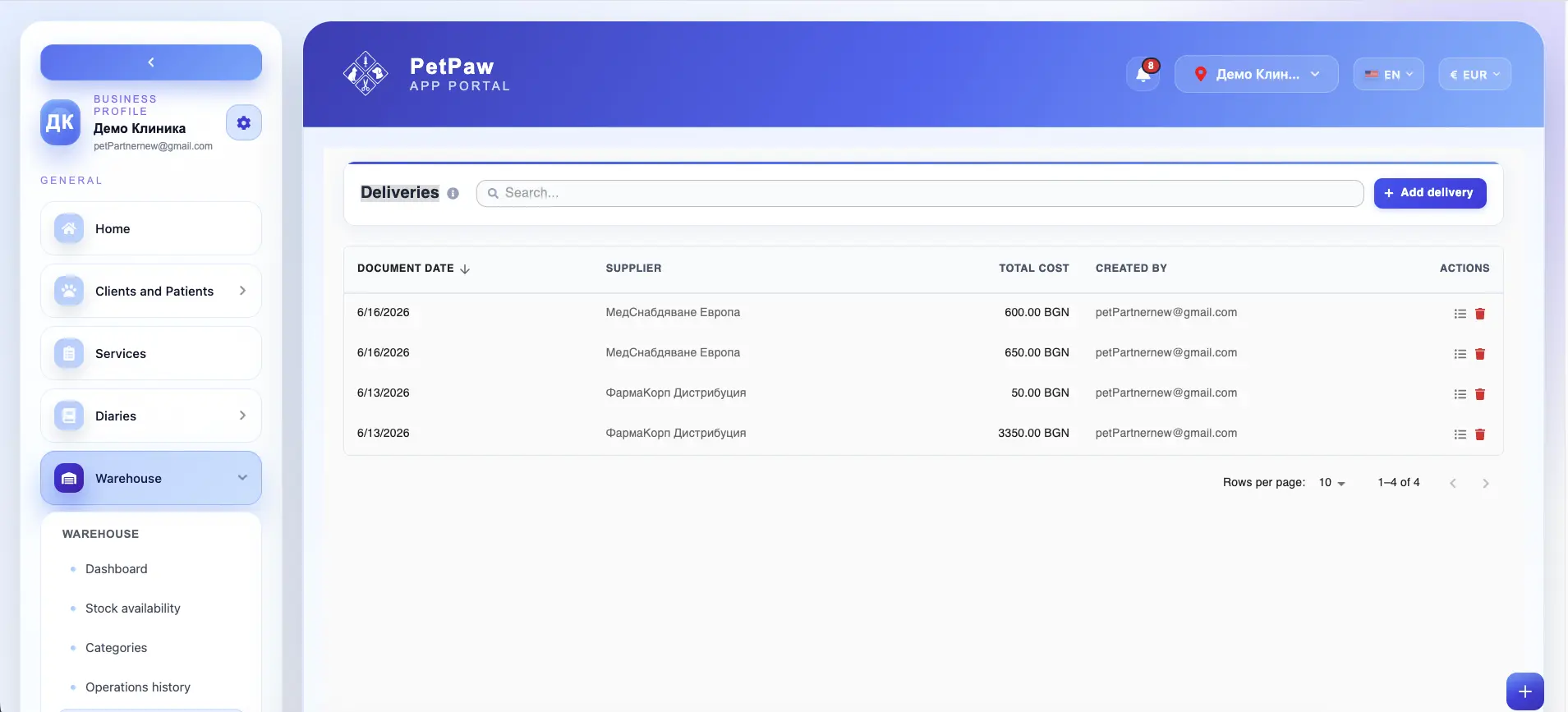
How to open Deliveries
- Log in to the app portal.
- From the left navigation menu, open Warehouse.
- Select Deliveries.
The page opens as a list of previously created delivery records, where you can review, create, and manage incoming stock documents.
What information can be recorded in a delivery
Each delivery can contain header information for the document itself, along with one or more delivery line items. Depending on your setup, a delivery record may include the following fields:
Delivery date
The date on which the stock was delivered to the clinic or warehouse.
Supplier
The supplier or vendor that provided the delivered items.
Received by
The employee who received or registered the delivery in the system.
Invoice reference
A document number, invoice number, or other supplier reference linked to the delivery.
Currency
The currency used for the delivery and pricing values.
Notes
Additional internal notes related to the delivery, such as receiving remarks, packaging issues, damaged goods, or supplier comments.
Delivery line items
Each delivery can contain one or more line items representing the actual products received. For each line item, you can typically record:
Item — the inventory product that was received.
Quantity — the quantity received for that item.
Purchase price — the unit purchase price for the delivered item.
VAT — the VAT rate applied to the item, if relevant for warehouse valuation, invoicing, or accounting.
Expiry date — the expiration date for the delivered batch, when expiry tracking is used.
Depending on the warehouse configuration, line items may also be linked to additional details such as batch information, unit values, or warehouse destination.
Create a new delivery
To register incoming stock from a supplier:
- Open the Deliveries page.
- Click Add Delivery.
- Fill in the document-level details:
- delivery date
- supplier
- received-by employee
- invoice reference
- currency
- notes
- Add the products included in the delivery as line items.
- For each line item, enter the required details:
- item
- quantity
- purchase price
- VAT
- expiry date, if applicable
- Save the delivery record.
- Approve the delivery if your workflow requires approval before stock is posted.
Once approved, the delivery increases the available stock of the included items.
How deliveries affect stock
Deliveries are directly connected to warehouse availability. When a delivery is approved:
- the delivered quantities are added to stock
- the warehouse inventory is updated
- stock value may be recalculated based on the recorded purchase data
- a movement history entry is created for traceability
- the received products become visible in stock availability and related warehouse views
This means that deliveries are one of the main ways stock enters the warehouse system.
Traceability and movement history
One of the main benefits of delivery records is traceability. Because deliveries create stock movement history, your clinic can later review:
- when an item entered the warehouse
- from which supplier it was received
- in what quantity it was delivered
- what purchase price and VAT were recorded
- which employee registered or received the delivery
- whether an expiry date was attached to the received stock
This is especially important for clinics that need clear inventory documentation for operational control, internal review, or compliance processes.
Reviewing and managing delivery records
The Deliveries page can also be used to review previously recorded supplier deliveries. Depending on your permissions and workflow, you may be able to:
- open an existing delivery
- review document details and line items
- check supplier and invoice information
- confirm received quantities and pricing
- delete a draft or incorrect delivery record
- manage the delivery before final approval
If a delivery has already updated stock, editing or deleting it may be restricted or may require additional internal review.
Why the Deliveries page is important
The Deliveries page helps your clinic:
- record incoming stock in a structured way
- connect delivered items to suppliers and invoice references
- maintain accurate stock quantities and valuation
- keep a clear history of received warehouse items
- support expiry tracking for newly delivered products
- improve traceability for warehouse operations
It is one of the core pages for managing how stock enters the warehouse.
Best practices
To use Deliveries more effectively:
- Record deliveries as soon as stock is received
- Double-check supplier, quantity, and purchase price information before approval
- Add expiry dates when they are available, especially for medications and consumables
- Use invoice references consistently for easier internal review and reconciliation
- Review line items carefully before approving the delivery
- Limit deletion or correction of approved deliveries according to your clinic's internal controls
Important notes
Stock is typically increased only after a delivery is approved, depending on your workflow configuration. Incorrect delivery quantities, prices, or expiry data may affect stock availability, stock valuation, and warehouse reporting.
- The available delivery fields may vary depending on your warehouse setup and enabled features.
- Some actions, such as editing, approving, or deleting deliveries, may depend on user permissions.