
Categories
What are Categories?
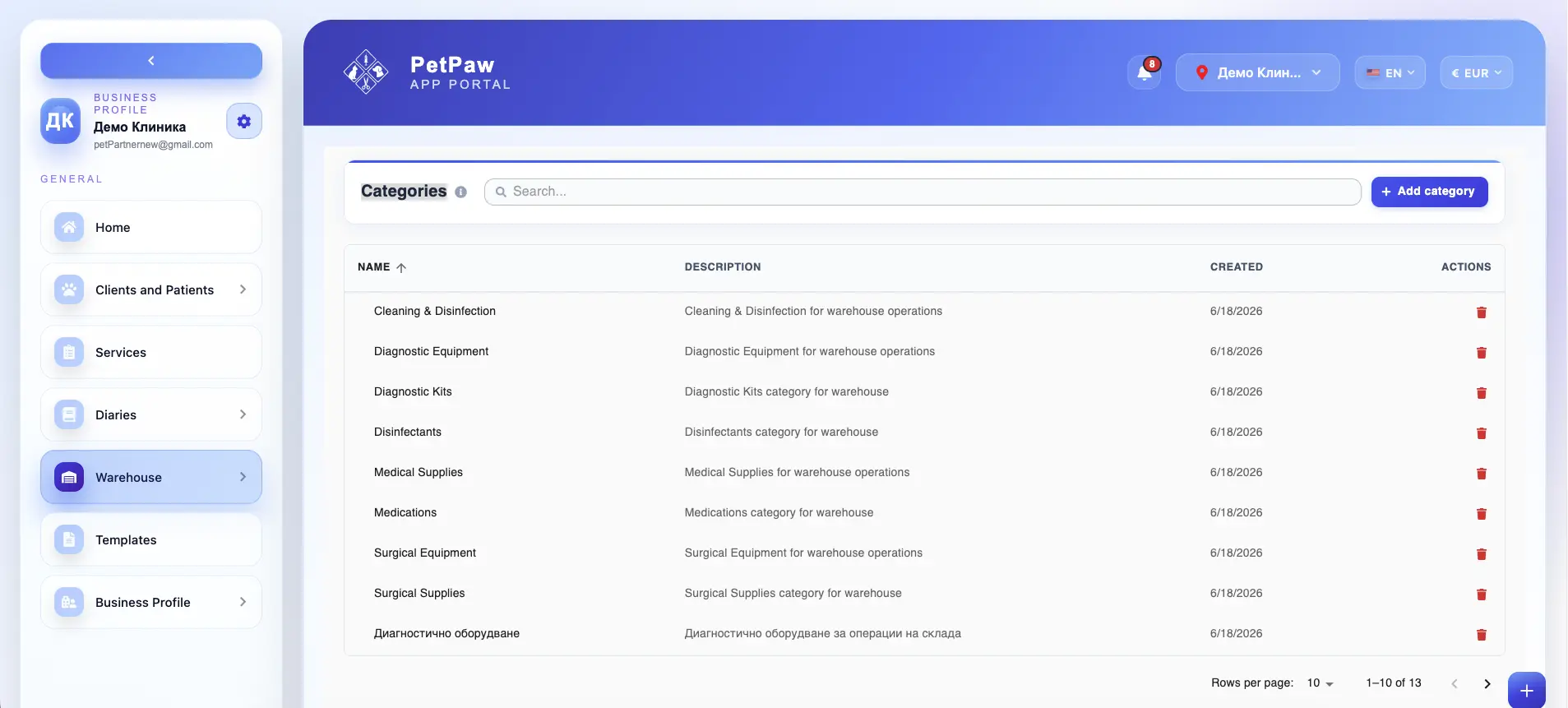
The Categories page is used to organize warehouse items into logical product groups. Categories help your clinic structure inventory in a way that makes stock easier to manage, search, filter, and analyze.
Instead of keeping all warehouse items in one long list, categories let you group products by type — for example medical consumables, cleaning and disinfection products, surgical equipment, diagnostic equipment, medications, retail items, and more.
This improves visibility across the warehouse and makes day-to-day stock work more efficient.
How to open Categories
- Log in to the app portal.
- From the left navigation menu, open Warehouse.
- Select Categories.
The page opens as a list of existing warehouse categories, where you can review, create, and manage category records.
Why categories are useful
Categories are an important part of warehouse organization because they make stock easier to work with across the system.
They help your clinic:
- group similar products together
- search inventory more easily
- filter stock lists faster
- review stock by product type
- improve reporting and dashboard visibility
- keep warehouse records more structured and easier to understand
For example, instead of reviewing all products together, your team can focus only on categories such as:
- medical consumables
- cleaning and disinfection
- surgical equipment
- diagnostic equipment
- medications
- retail products
What information a category can include
Depending on your warehouse setup, a category record may include:
Category name
The name used to identify the category in the system.
Examples:
- Medical Consumables
- Cleaning and Disinfection
- Surgical Equipment
- Diagnostic Equipment
Description
An optional internal description explaining what types of products belong to the category or how the category is used.
This can help keep category usage consistent across your clinic.
Created date
The date on which the category was created in the system.
Create a new category
To add a new product category:
- Open the Categories page.
- Click Add Category.
- Enter the category name.
- Add a description if needed.
- Save the category.
Once created, the category becomes available when creating or editing warehouse items.
Use categories in warehouse items
Categories are used when creating or managing inventory items.
When an item is assigned to a category, that category can later be used across the warehouse system for:
- stock filtering
- stock availability views
- dashboard summaries
- reporting
- stock reviews
- internal organization of products
This means categories are not just labels — they help structure how stock is viewed and analyzed across the warehouse.
Search and filter by category
One of the main benefits of categories is that they improve navigation inside the warehouse module.
Depending on the page, categories can be used to:
- filter Stock Availability
- review stock by category in the Warehouse Dashboard
- narrow down inventory lists
- focus on a specific product group during stock counts or reviews
- improve internal reporting and warehouse analysis
For example, a user may filter stock to see only:
- diagnostic equipment
- cleaning supplies
- medical consumables
This makes it easier to work with large inventories.
Delete a category
If a category is no longer needed, it can be removed from the system.
However, warehouse items may already be assigned to that category. To keep stock data organized, the system can allow those items to be moved to another category before the original category is deleted.
This helps avoid leaving warehouse items without a category and preserves consistent inventory structure.
Move items to another category before deletion
When deleting a category, your clinic may be able to reassign the linked items to a different category first.
This is useful because it:
- prevents items from losing their category assignment
- keeps reports and filters usable
- protects stock organization
- avoids data gaps in warehouse records
For example, if an old category is being merged into a new one, the items can be moved before the old category is removed.
Best practices for category management
To keep warehouse categories useful and consistent:
- Use clear and practical category names
- Avoid creating too many overlapping categories
- Group products in a way that makes sense for stock review and reporting
- Use descriptions when category purpose may not be obvious
- Review old or unused categories periodically
- Reassign items carefully before deleting a category
A well-structured category system makes every warehouse page easier to use.
Why the Categories page is important
The Categories page helps your clinic:
- keep inventory organized into meaningful product groups
- improve stock filtering and search
- make warehouse reports easier to understand
- support dashboard summaries and stock analysis
- maintain cleaner warehouse structure over time
- avoid confusion when working with large numbers of items
Although categories do not directly change stock quantities, they play an important role in how warehouse data is organized and interpreted.
Important notes
Some warehouse items may need to be reassigned before a category can be deleted. A consistent category structure improves the quality of warehouse filtering, reporting, and stock review.
- Categories are used to organize warehouse items, not to move or change stock quantities.
- The exact fields and deletion flow may vary depending on your warehouse setup and permissions.