
Adding an Appointment, Time Off, or Holiday
Working with the Calendar
The calendar allows you to manage:
- Booked appointments for patients
- Clinic holidays
- Employee time off
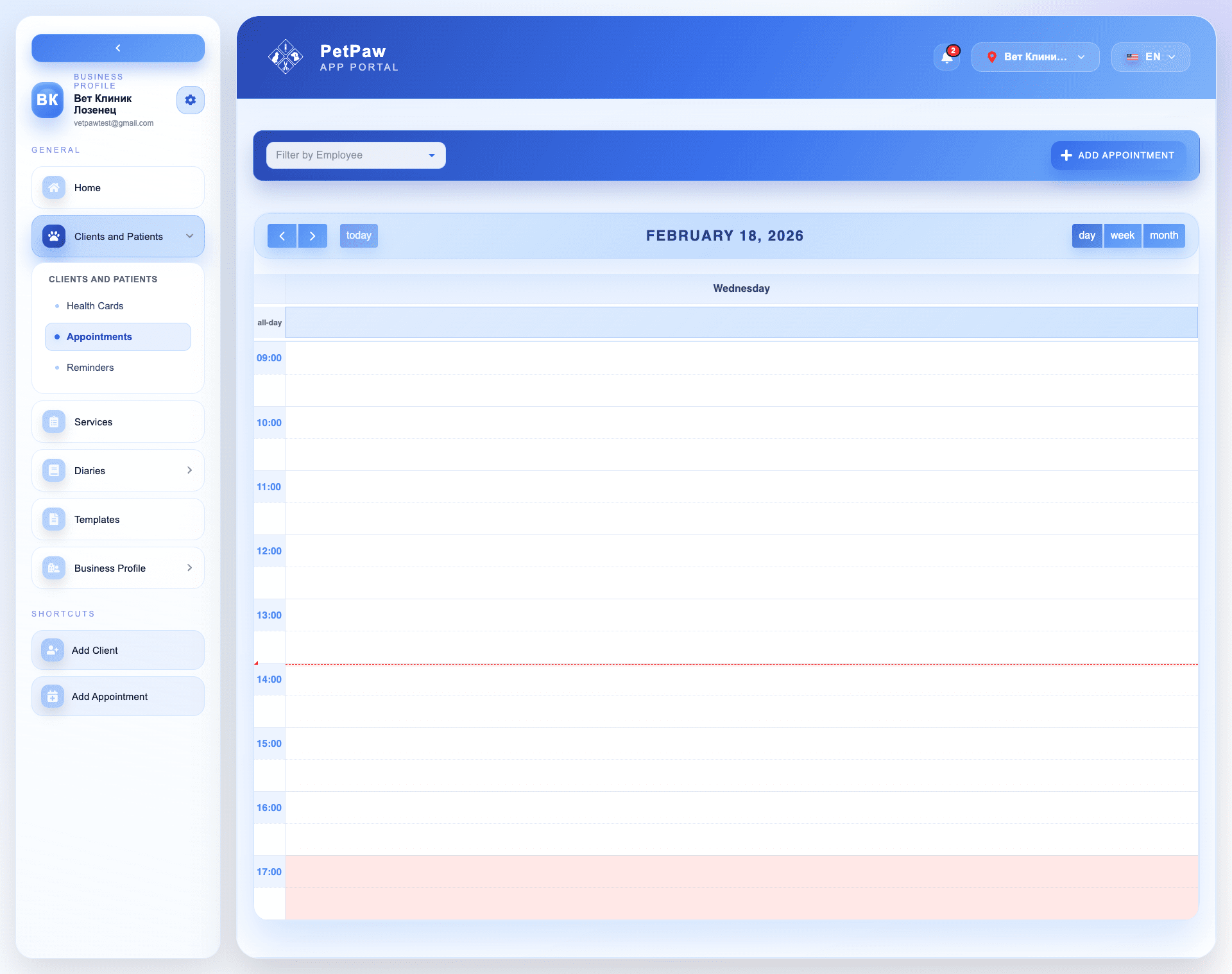
How to Add a New Entry
- Open the Clients and Patients menu
- Select Appointments
- Click the "Add Appointment" button
A window for creating an entry will open.
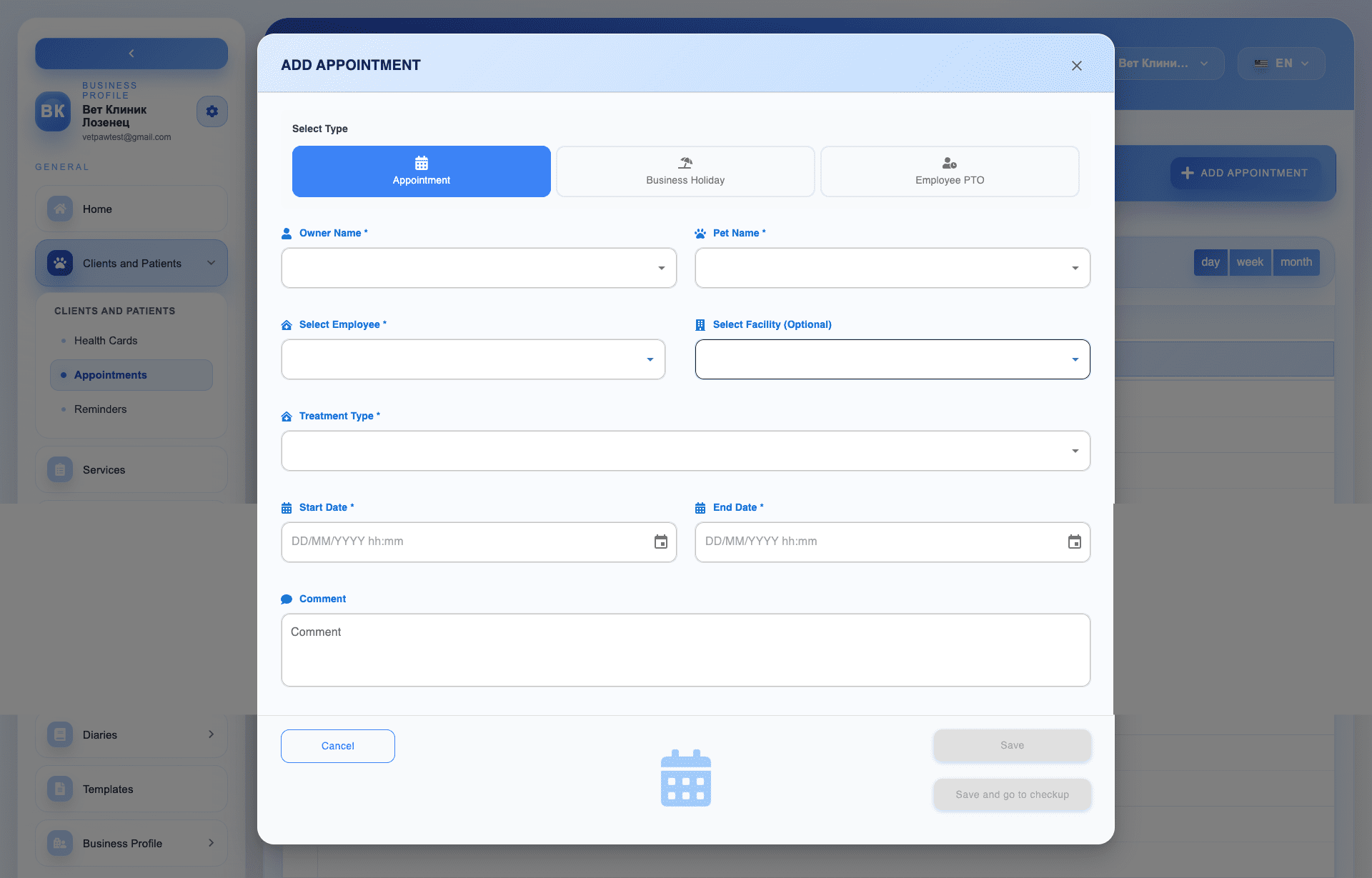
Selecting the Type
First, select the type of entry:
- Appointment — booking an examination or visit
- Holiday — marking a non-working day for the clinic
- Employee Time Off — marking an absence for a specific employee
Adding an Appointment
When selecting "Appointment", fill in:
- Owner name
- Pet name
- Assigned staff (doctor/employee)
- Room (optional)
- Treatment type
- Start date and time
- End date and time
- Comment (optional)
After filling in, click Save.
Adding a Holiday
Use this option when the clinic will not be open.
Fill in:
- Period (start and end date)
- Additional notes (optional)
Adding Employee Time Off
Mark an absence for a specific employee.
Fill in:
- Employee
- Time off period
- Comment (optional)
Viewing the Calendar
After saving:
- The entry will appear in the calendar
- You can switch views between Day, Week, and Month
Tips
- Make sure appointments don't overlap.
- Use holidays for national holidays or emergency closures.
- Marking time off helps avoid incorrectly booking appointments.