
Adding a Health Record (Treatment)
Adding a Health Record
A health record (treatment) contains information about the examination, diagnosis, therapy, and all medical actions performed for the patient.
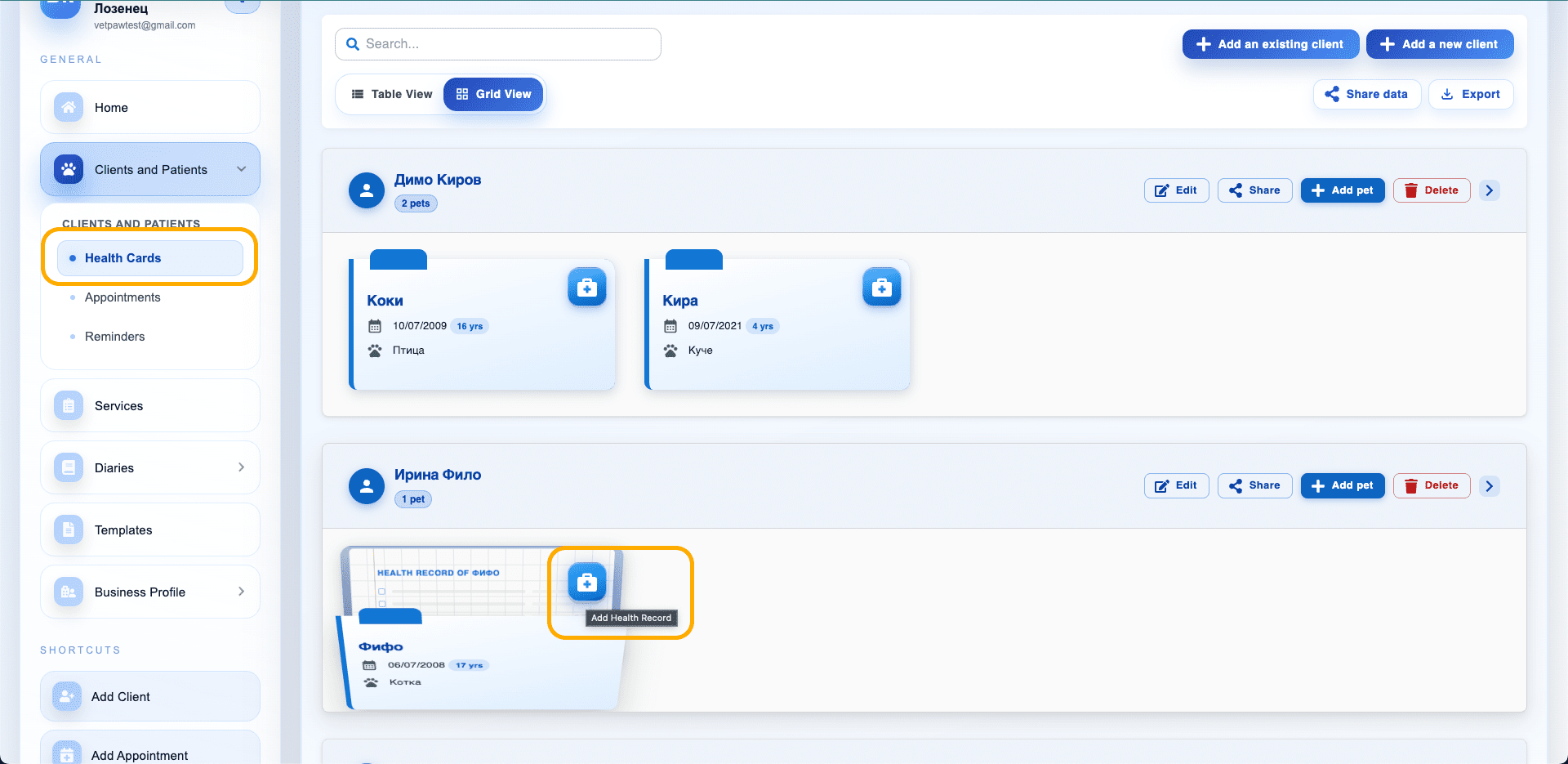
How to Create a New Record
- Open Clients and Patients
- Select Health Cards
- Click the "Add Health Record" on the patient's health card button
A window with creation steps will open.
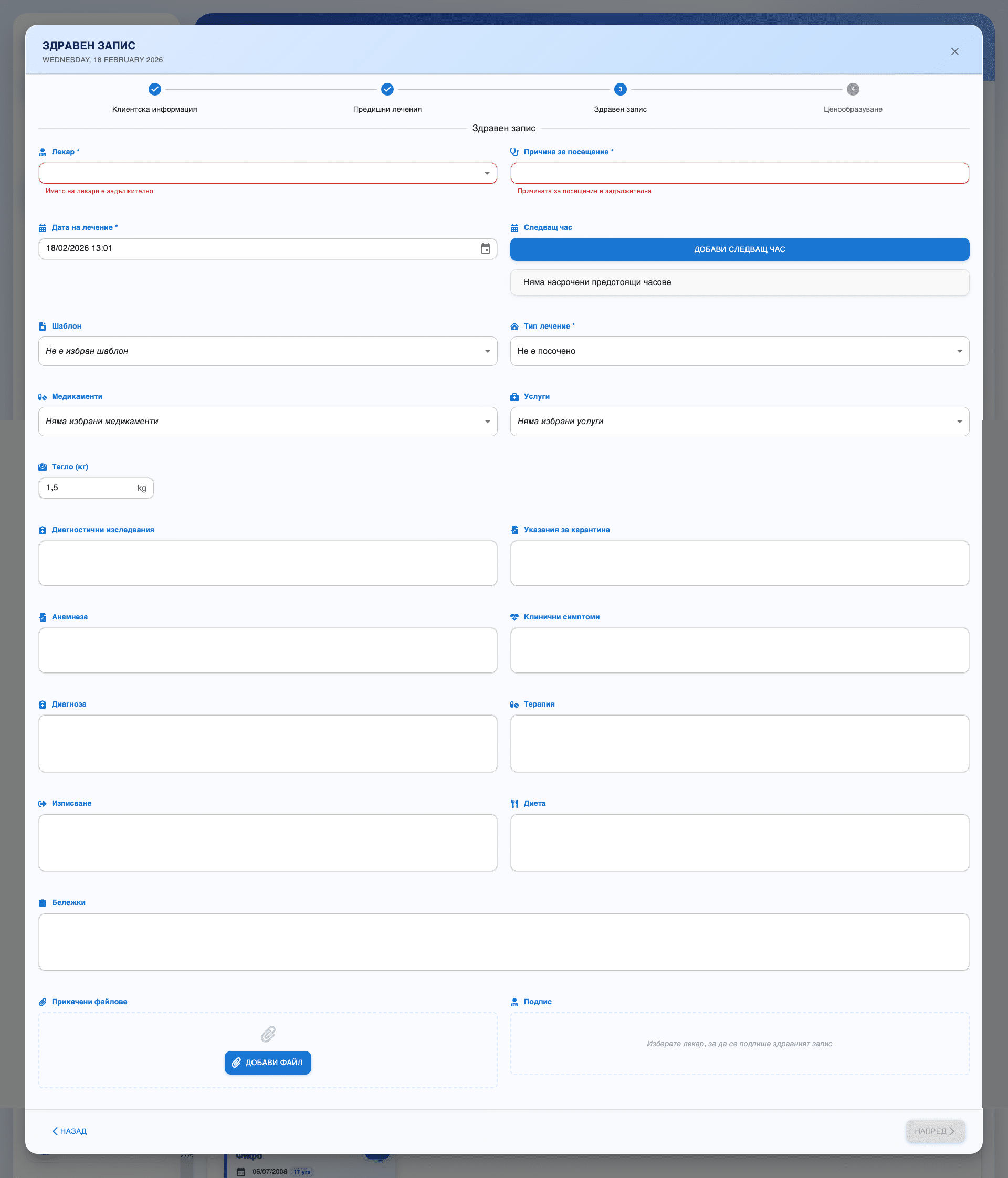
Creation Steps
Creating a health record goes through several stages.
1. Client Information
Displays basic data about the patient and owner.
Here you can verify:
- Patient
- Owner
- Related information
2. Previous Treatments
In this step, you can see previous records for quick reference.
Helps with:
- Reviewing history
- Avoiding duplication
- Tracking therapies
3. Health Record
This is the main part where medical data is entered.
Fill in:
- Doctor (required)
- Reason for visit (required)
- Treatment date
- Next appointment (optional)
- Treatment type
- Template (if using templates)
Additional medical information:
- Medications
- Services
- Weight
- Diagnostic tests
- Medical history
- Clinical symptoms
- Diagnosis
- Therapy
- Discharge
- Diet
- Notes
4. Pricing
Finalize services and prices before saving.
Attached Files
You can add:
- Images
- Laboratory results
- Documents
Signature
Select the doctor who will sign the health record.
Saving
After filling in:
- Click Next
- Confirm the record
Tips
- The "Doctor" and "Reason for visit" fields are required.
- Use templates for faster record creation.
- Keep the medical history up to date for better tracking.